🪟 Windows (Microsoft Store)
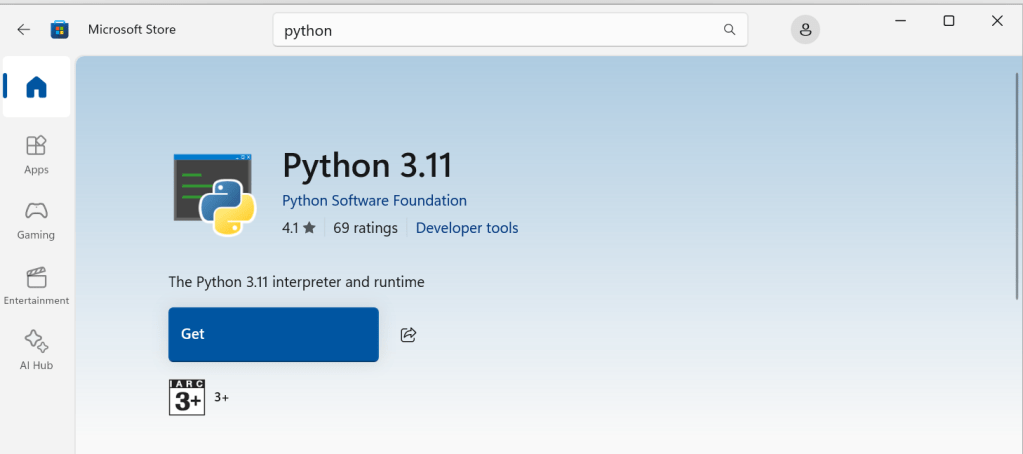
- 🏪 Open Microsoft Store:
Press Win + S, type Microsoft Store, and press Enter.
- 🔍 Search for Python:
In the Store search bar, type Python.
- 📱 Select the latest Python version:
Choose the official Python 3.x app published by the Python Software Foundation.
- ⬇️ Click Install:
This installs Python system-wide and includes pip.
- 🧪 Verify Installation:
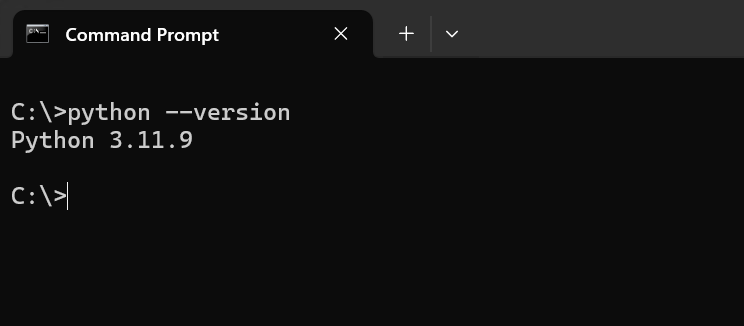
Open Command Prompt and run:
cmd
python --version
- You should see something like
Python 3.11.x.
🍎 macOS
- ⚠️ Note: Python 2.7 may be preinstalled, but you should install Python 3 manually.
- 🌐 Download from Official Site:
Visit python.org/downloads and download the latest macOS installer.
- 📦 Install Python:
Open the downloaded .pkg file and follow the installer prompts.
- 🔁 Add Python to your shell path (if needed):
Usually automatic, but you can verify by running:
bash
python3 --version
- 🛠️ Optional: Use Homebrew (recommended for developers):
Open Terminal and run:
bash
brew install python
bash
python3 --version
🐧 Ubuntu (and other Debian-based Linux)
- 💻 Open Terminal
- 📦 Update your package list:
bash
sudo apt update
bash
sudo apt install python3
- 📦 Install pip (Python package manager):
bash
sudo apt install python3-pip
bash
python3 --version pip3 --version
 performancetestgurus.com
You must be logged in to post a comment.